


Booking appointments is a prevalent task that many people engage in regularly. Sales representatives frequently arrange virtual meetings to address inquiries about a product, while software companies enable individuals to schedule interactive demonstrations. Telehealth therapists also offer clients the opportunity to reserve video sessions.
These are merely a handful of instances where various groups will find immense value in a recent addition to Microsoft Teams. The platform now includes a feature called Virtual Appointments, specifically designed to enhance customer interactions. If you have been utilizing Teams alongside a different online appointment application, this new feature will significantly streamline your experience.
What Is Virtual Appointments in Teams?
With Virtual Appointments, Microsoft Teams offers a comprehensive meeting platform tailored for customer interactions. This innovative feature enables you to effortlessly schedule, oversee, and conduct business-to-customer (B2C) meetings.
By combining the scheduling functionality with the user-friendly video conference interface, Virtual Appointments simplifies the entire process. Moreover, anyone can join a virtual appointment by simply clicking on the provided link, eliminating the need for a Teams account.
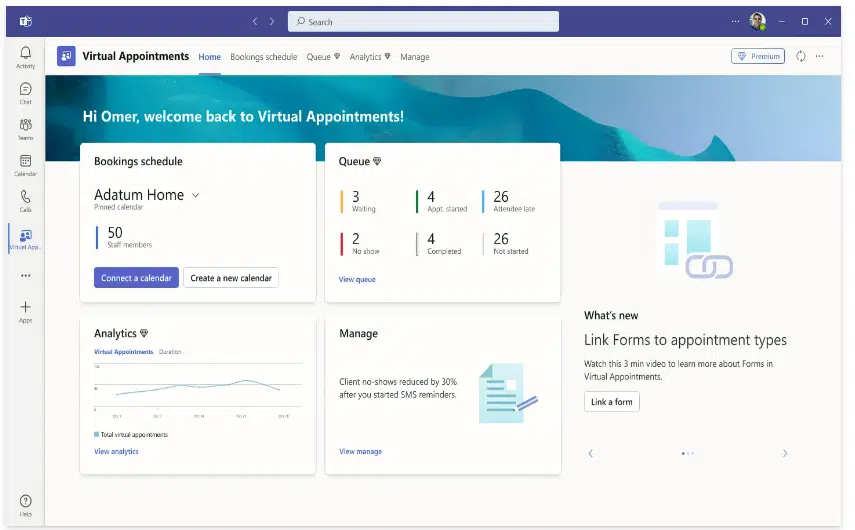
Some of the features below will be available with any Microsoft 365 plan. Some are available with a premium plan.
Teams Virtual Appointments Features
The integration of Microsoft’s scheduling app, Bookings, with Teams enhances the functionality of Virtual Appointments, ensuring a seamless experience. The following features will be accessible to users with any Microsoft 365 plan, while some additional features require a premium plan.
Manage Scheduled Appointments
You can see your scheduled appointments in a single view. Manage cancellations and time changes easily.
Send Customized Confirmations & Reminders
You have the ability to deliver personalized messages to customers through SMS or email, tailoring the experience to their individual needs. Additionally, you can leverage automation to provide that personal touch without the need to manually send each message. This feature allows for automated appointment reminders, saving you valuable time.
Customized Waiting Room
Elevate the personalization of your virtual engagements by customizing the Teams waiting room. Brand your business by incorporating themes and logos into the waiting room interface. Additionally, you have the option to communicate with attendees through chat while they are in the lobby waiting room. This feature becomes particularly useful if your current appointment is running slightly behind schedule, as you can promptly inform them that you will be with them shortly.
Meeting Follow-ups
You can send meeting follow-ups after a virtual appointment. This helps you reduce the time it takes to send any promised follow-up information. You also keep all details in a single place. This makes your client communication trail easier to follow.
Organisation & Department Analytics
How effective are your appointments? It’s hard to know if your demos are resulting in sales if you don’t have a good tracking system. It’s also important to have visibility into customer appointments across the organization.
You can do this with a premium analytics feature. It gives you helpful reporting. The reporting provides insights into B2C virtual appointments in all departments.
How to Use Virtual Appointments
To start using Virtual Appointments in Teams, admins must set up a few things. Note, they must be a Bookings admin to access these settings.
Create a Calendar
In the Virtual Appointments app choose to “Create a calendar.” You can find this option on the Home tab.
Larger organisations may wish to create different calendars for different departments.
Add Staff
Next, add staff members. You can add up to 100. You will also need to assign them a role. Once you’ve added your staff, you can view their availability in both Teams and Outlook.
What’s another nice thing about using an integrated platform like M365? It’s the cross-app compatibility. Your calendar syncs across apps.
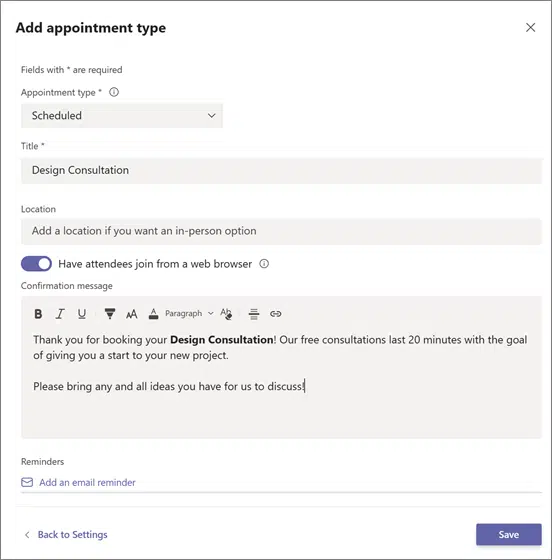
Create Appointment Types
You’ll next set up your appointment types. You can choose from these two options:
- Scheduled: You schedule the day/time. The system adds this information to the email confirmation.
- On-demand (Teams Premium): Customers can choose when to meet from your booking calendar.
Set Up SMS Notifications (If desired)
If you choose to use SMS notifications and have the right Teams plan, you can set this up next. This allows you to easily send appointment confirmations and reminders via text message.
Note: Attendees currently need a valid U.S., Canadian, or U.K. phone number to receive the SMS notifications.
Link Forms (If desired)
If you would like your attendees to fill out any forms, you can link them now. Virtual Appointments allows linking up to four cloud-based forms. These would be forms you have created in Microsoft Forms.
Publish Your Booking Page
If you want to give customers the ability to book on-demand appointments, take this next step. You will need to publish the booking page. You do this on the “Manage” tab of Virtual Appointments. Select “Booking page,” and turn on “Publish booking page.”
Get Help Using Your Microsoft 365 Tools More Effectively
Microsoft 365 is a versatile platform offering numerous possibilities. Unfortunately, many companies fail to leverage all the available features, which can lead to reduced team effectiveness and unnecessary expenses on unnecessary applications.
Are you seeking assistance in maximizing your Microsoft 365 experience? Contact us today to schedule a meeting and supercharge your productivity.